
Prepare Core Keeper before using Nucleus Co-op
Start Core Keeper normally from the launcher you actually use and reach the main menu before adding Nucleus Co-op. Record the installed game path, the launcher, the visible game build, and whether an existing world opens and saves normally. This baseline matters because Nucleus Co-op can coordinate supported instances, but it cannot repair a game installation, a missing dependency, or a world that already fails by itself.
Keep the Nucleus Co-op application, Core Keeper files, handler files, and any optional mods in clearly identified locations. For the first attempt, avoid a cloud-synced folder, an aggressive overlay stack, or several input remappers at once. Back up important worlds and player data before testing instance behavior; a short backup is easier to restore than a long session whose changed files are unclear.
Keep the first run small: open the expected windows, reach a menu in each one, confirm independent input, try the documented multiplayer route, and exit cleanly. A game-specific page is a test plan, not a permanent compatibility promise.
- A legitimate Windows installation that launches Core Keeper without Nucleus Co-op.
- The exact launcher, game path, and build shown by your installation.
- The current Core Keeper handler entry from the official Handler Hub.
- A backup of important worlds and player data before the first multi-instance test.
- Two known input paths, preferably two physical controllers for the baseline.
Match the Core Keeper handler to the game build
A handler is the game-specific part of a Nucleus Co-op workflow. It may identify the executable, choose launch arguments, prepare per-instance files, start the input layer, and describe a supported player count or connection step. That means a Core Keeper handler note is more important than a generic claim that the game has multiplayer. Read the current entry from the official Handler Hub immediately before testing and compare it with the files installed on your PC.
Do not mix an old Core Keeper tutorial, an unverified DLL, and a different game edition. A patch can change the executable, save behavior, launch timing, or local-session flow. If the handler cannot find the game, verify the edition, launcher path, permissions, and handler source before changing graphics or input settings.
| Check | Why it matters |
|---|---|
| Game edition and launcher | The executable path and launch assumptions can differ between installations. |
| Handler source and date | The handler may target a particular Core Keeper build or instance method. |
| Instance count | Two visible windows do not automatically mean two connected players. |
| Input layer | A remapper or virtual device can make one controller reach both instances. |
Launch two Core Keeper instances and keep the baseline simple
For the first attempt, use the handler's documented launch sequence and the default window arrangement. Close Core Keeper after the normal baseline test, start Nucleus Co-op from its writable local folder, select the Core Keeper handler, and choose only the number of instances you can test safely. Do not add a second launcher, a new overlay, or a resolution mod while you are still proving that the handler opens the game.
Once both windows are stable, arrange them so you can see the important menus without covering the other instance. Borderless mode, ultrawide scaling, high-DPI settings, and overlays can wait. A plain two-window baseline gives you a known state for diagnosing Core Keeper connection behavior, controller assignment, and save changes one variable at a time.
Finish the normal launch
Open Core Keeper without Nucleus Co-op and confirm that the intended world or new test world behaves normally.
Select the exact handler
Use the current official handler destination and follow its game-specific launch notes.
Start the smallest test
Open two instances only when your PC can keep both windows responsive.
Confirm both menus
Record whether each window reaches a usable menu before testing controllers or connection.
Separate Core Keeper controllers, keyboard, and mouse input
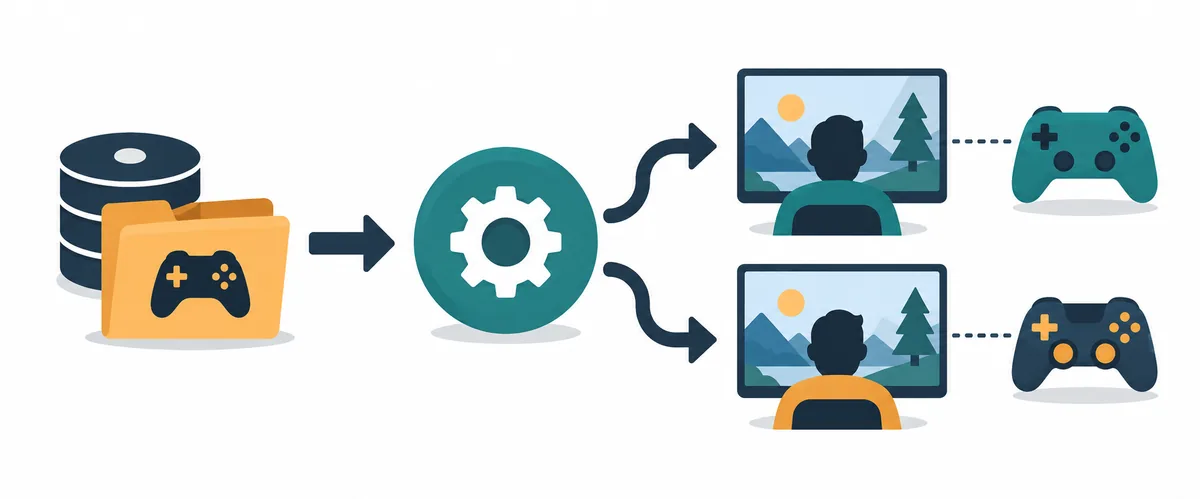
Connect the intended controllers before the handler launches the instances. Start with two physical devices that Windows recognizes once each, then test one window at a time: move, open a menu, interact with an object, and pause if the game supports that action. Repeat for the second window. If a single controller moves both players, stop before entering a world and inspect device duplication, virtual controllers, focus, and the handler's input-isolation notes.
Keyboard and mouse input is more focus-sensitive than a two-controller baseline. If the workflow uses a shared keyboard or mouse, follow the handler's current arrangement and record which window has focus. Prove device isolation before changing remapping, window position, or display scaling.

Separate Nucleus Co-op from Core Keeper multiplayer and saves
Core Keeper has its own multiplayer and world-joining behavior. Nucleus Co-op can help start and organize local game processes, windows, and inputs, but it does not create a new online service, change the game's account rules, or guarantee that two local instances can join each other. After the windows and controllers work, use the exact in-game or handler-documented connection route. Do not infer online support from a successful second launch.
Test with a disposable world or backed-up copy when possible. Record which instance hosts, which menu creates or joins the session, whether the other instance sees the world, and whether the connection fails before or after input assignment. Treat saves separately: exit both windows, note changed files, compare them with the backup, and never copy random saves while diagnosing a handler.
| Question | Evidence to record |
|---|---|
| Who hosts? | The exact Core Keeper menu or instance that creates the world session. |
| How does the second player join? | The in-game route, account state, LAN/online condition, and any handler note. |
| Are inputs isolated? | The physical device, focused window, and action tested in each instance. |
| What changed on disk? | The world, player, profile, or instance folder changed after a clean exit. |
Run a short Core Keeper test and keep a reproducible record
Use a short, reversible test instead of starting a valuable world immediately. Confirm the normal launch, the handler source, two menus, independent movement, the Core Keeper connection step, and a clean exit in that order. If the second instance closes, a controller crosses over, the world cannot be joined, or files change unexpectedly, stop and record the exact stage. Do not stack several unofficial fixes in one run.
Before changing a working setup, write down the Nucleus Co-op version, handler source or date, Core Keeper build, launcher, executable path, instance count, controller type, window layout, host/join route, and save backup location. When an update changes the result, repeat the same short test and change one variable so a handler regression is not confused with an input, network, permission, or save problem.
- Core Keeper edition, build, launcher, and executable path.
- Handler URL or source, version/date, and required launch order.
- Number of windows, layout, and controller or keyboard assignment.
- Changed save folder, backup location, clean-exit result, and error stage.
| Record | Example question |
|---|---|
| Versions | Which Nucleus Co-op, handler, launcher, and Core Keeper build were tested together? |
| Launch | Did both instances reach a menu before input and connection testing? |
| Input | Which physical device controlled each player, and did the other window stay still? |
Practical notes for a stable setup
Core Keeper Nucleus Co-op FAQ
Can I play Core Keeper with Nucleus Co-op?
You can test the workflow when the current Core Keeper handler and your game build are compatible. Start with the normal game, verify the official handler notes, open two instances, isolate input, and confirm the game's own connection route before a longer session.
Does Nucleus Co-op add multiplayer to Core Keeper?
No. Nucleus Co-op coordinates supported local processes, windows, and input. Core Keeper still controls its own world, account, network, and multiplayer behavior, so a second window is not proof of a working joined session.
Why does one controller control both Core Keeper instances?
Check duplicate or virtual devices, controller order, window focus, remapping tools, and the handler's input-isolation method. Return to two known physical controllers and test one simple action in each window.
Are Core Keeper worlds and saves shared between instances?
Do not assume that a generic Nucleus Co-op setup isolates or shares every world and player file. Back up important data, run a short disposable test, exit cleanly, and record the folders that changed before copying anything.
Where can I find the Core Keeper Nucleus Co-op handler?
Use the current Core Keeper entry in the official Nucleus Co-op Handler Hub and read its notes before installing files. The handler destination can change, and an old community guide is not a permanent compatibility guarantee.
Need a clean Nucleus Co-op baseline?
Use the installation, handler, controller, and troubleshooting guides to prepare a stable Windows setup, then return to this Core Keeper checklist for the game-specific test.
Open the handler guide