
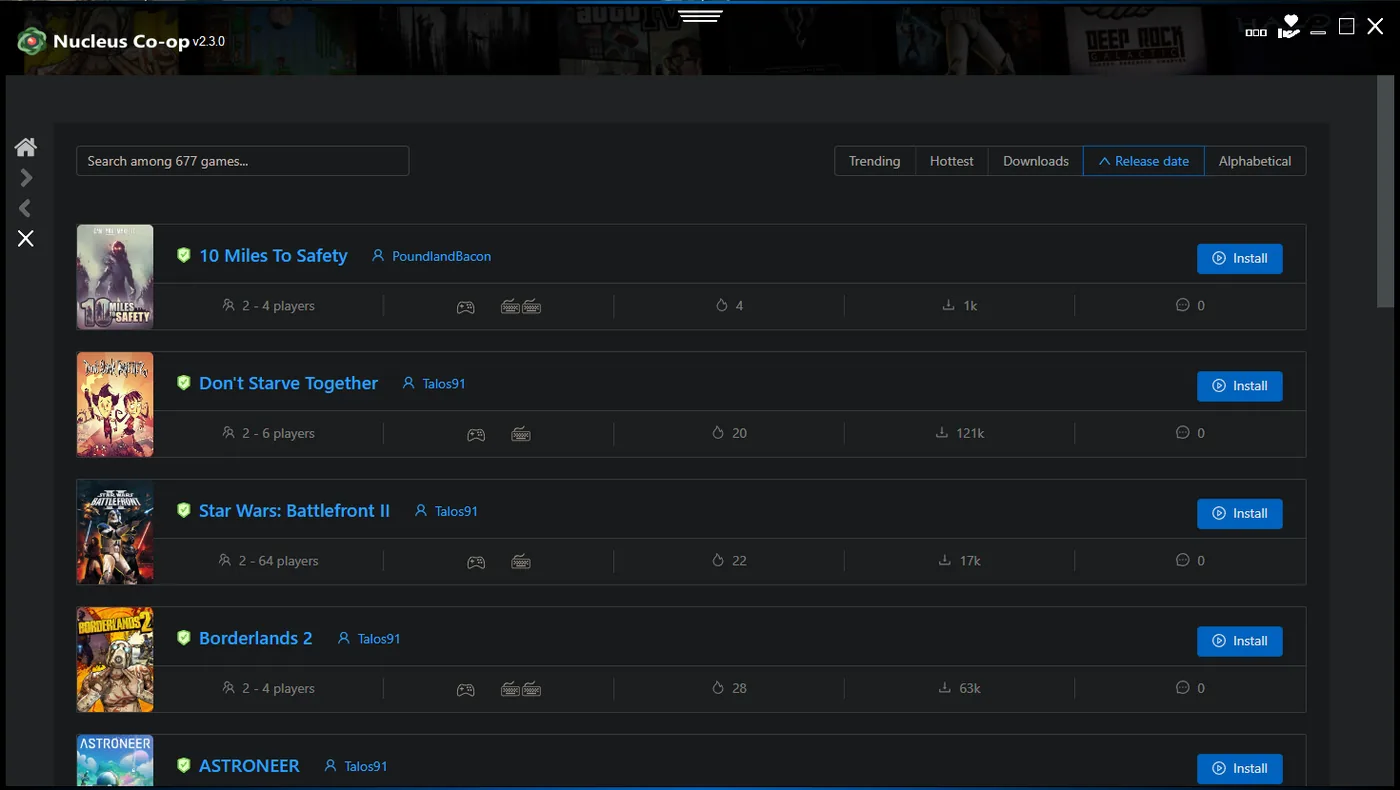
What is a Nucleus Co-op handler?
A handler is a game-specific script or package that tells Nucleus Co-op how to work with one title. It may contain the game path, executable details, launch arguments, instance layout, file isolation rules, input behavior, and instructions for connecting the instances. The handler is separate from the Nucleus Co-op application and separate from the game itself.
This separation is important for both setup and troubleshooting. Installing the latest application does not automatically make every game work. A handler can depend on a particular build, launcher, mod, save location, or network mode. When a game update changes one of those pieces, the handler may need an update even though Nucleus Co-op itself still opens normally.
| Piece | What it controls |
|---|---|
| Application | The main Windows launcher and instance workflow. |
| Handler | Game-specific paths, launch behavior, files, inputs, and notes. |
| Game installation | The executable, assets, saves, and multiplayer behavior. |
| Optional mod | A title-specific connection or compatibility layer when required. |
| Controller setup | How Windows and the game receive each player's input. |
How to choose the correct handler
Start with the exact game name and edition. Short names create avoidable mistakes: Modern Warfare 2 can refer to different releases, Minecraft Java is not Minecraft Bedrock, and a community guide for a remaster may not apply to an older PC build. Compare the handler title, game executable, launcher, and version notes before you click install.
Next, read the notes for player count, required mods, network behavior, controller limitations, save handling, and known errors. A page that says “handler available” is not a promise that every current build works identically. Treat the handler notes as the source of truth for the specific setup you are trying to reproduce.
- Match the handler to the exact title and edition.
- Check the game version and launcher path.
- Read required mods and connection steps before launching.
- Note the supported player count and input limitations.
- Save a copy of the handler version or release date used in a working session.
How to install a handler
Use the official or clearly identified community handler source for the game you are setting up. If the built-in downloader works, let Nucleus Co-op place the handler where it expects it. If you install manually, keep the handler files together, preserve their names and folder structure, and do not mix files from unrelated game versions.
After installation, reopen the application or refresh the handler list if the UI requires it. Select the game, point it at the legitimate game folder, and verify that the handler's visible notes match your edition. Run a short test before you change controller tools, graphics settings, or save paths.
Open the game entry
Use the games list or Handler Hub to identify the exact title and edition.
Read requirements
Check mods, launchers, game builds, player limits, and known issues.
Download or extract
Use the built-in downloader or the clearly documented manual handler route.
Refresh the list
Restart or refresh Nucleus Co-op if the new handler does not appear immediately.
Run a short test
Launch one session and confirm windows, inputs, and the connection step before expanding the setup.
Handler downloading stuck on “please wait”
A handler downloader that never progresses can be caused by the embedded web component, an interrupted connection, firewall or antivirus rules, a changed source endpoint, or a handler that is temporarily unavailable. Do not click through repeated prompts without recording the exact message. Close the application, reopen it once, and check whether the issue affects every handler or only one game.
If every handler fails, check the WebView2 note in the official release, Windows network access, and security software logs. If one handler fails while another downloads normally, investigate the game-specific source or update rather than assuming that the whole application is offline. A manual handler route is only useful when the source and file structure are clearly documented.
- Confirm the application has normal network access.
- Check whether WebView2 is installed when the built-in downloader requires it.
- Test a second handler to separate a global downloader problem from a single-source problem.
- Review firewall and antivirus events without blindly disabling protection.
- Use only a documented official or community source for manual handler files.
Handler updates, old versions, and compatibility
A handler update can fix a game patch, but it can also change the expected path, input behavior, or save handling. Before updating a working handler, record the current version and keep a backup of the working folder if the source permits it. After updating, test the same game build and controller setup so you can identify whether the change improved or reduced compatibility.
Do not keep an old handler just because it worked once without understanding why. An old handler may rely on a game executable or launcher behavior that no longer exists. The useful record is not simply “old is better”; it is the combination of application version, handler version, game build, mod version, and the exact launch result.
Keep a Nucleus Co-op handler test record
A short record makes Nucleus Co-op handler troubleshooting much faster. Write down the application version, handler name, handler date or version, game edition, executable path, launcher, required mod, player count, and the exact result of the first test. This is more useful than saying only that a handler is broken, because another release or launcher can change the expected behavior.
When a handler works, save the working details before you experiment with controllers, graphics, cloud folders, or connection settings. When it fails, compare the failure stage with the record: did the handler download, did the game path resolve, did the first instance open, did the second instance open, and did each input reach the correct window? Each answer points to a different layer of the setup.
Use the same record after a handler update. If the new version changes the launch result, keep the old notes and report the application, handler, game build, and input path together. This prevents a generic Nucleus Co-op handler search from hiding the version boundary that actually matters.
- Application version and handler name.
- Game edition, build, launcher, and executable path.
- Required mod, player count, and connection method.
- Exact launch stage, error text, and controller arrangement.
- What changed between the last working and failing test.
Practical notes for a stable setup
Nucleus Co-op handler FAQ
Are handlers included in the main download?
The application and game-specific handlers are separate parts of the setup. Use the handler source or built-in handler flow described for your game.
Where are Nucleus Co-op handlers stored?
The exact location depends on the application version and handler workflow. Follow the current handler instructions and avoid moving individual files out of their expected structure.
Why does a handler work for someone else but not me?
Game build, launcher, mods, input drivers, permissions, and network behavior can differ. Compare those variables before copying another user's settings.
Can I install a handler from a random file host?
This site recommends using the official Handler Hub or a clearly identified community source. Do not use files whose version, origin, and contents are not explained.
What should I do when a handler download fails?
Determine whether every handler fails or only one, check WebView2 and network access, review security logs, and use a documented manual route only when the source is trustworthy.
Match the handler to your game
The games directory is the entry point for title-specific requirements, known limitations, and first-batch setup pages.
Browse games