
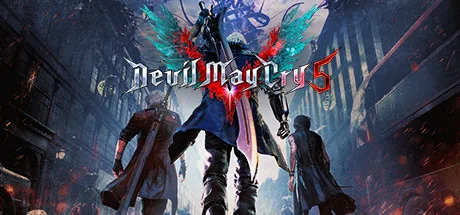
Before you launch DMC5 with Nucleus Co-op
Start Devil May Cry 5 normally from a legitimate Windows installation and confirm that the game reaches its menu without a trainer or Nucleus Co-op. Write down the edition, launcher path, executable location, and game build. This baseline matters because a multi-instance failure can come from the game, the handler, the trainer, Windows permissions, or input routing.
The normal Steam store listing is useful for identifying the PC game and its official files, but it is not proof that Nucleus Co-op supports a particular build. Community DMC5 co-op workflows have their own requirements and can stop working after an update. Treat the current trainer and Handler Hub notes as version-sensitive instructions.
Back up important saves before experimenting. The first goal is not a long mission; it is two windows that open, accept independent input, and can close cleanly without changing files you cannot restore.
- A legitimate Devil May Cry 5 Windows installation that launches by itself.
- Nucleus Co-op v2.4.1 or the version recorded by the current official release page.
- A current handler entry and a compatible community trainer source.
- Two known controller paths, or the exact keyboard and virtual-input method documented by the trainer.
- A backup of important saves and a note of the original game folder.
- Enough CPU, memory, and GPU headroom to test two game instances at once.
Match the DMC5 trainer, handler, and game build
DMC5 split screen through Nucleus Co-op is a community workflow, not a native Capcom feature. The trainer supplies the co-op behavior while the handler tells Nucleus Co-op how to launch and separate the instances. Keep those pieces together: a handler from one guide and a trainer from another guide may target different executables, patches, or player limits.
Use the official Handler Hub as the first place to check the current game entry. For the trainer, follow the source notes and installation instructions from the project that publishes it, and do not download a renamed DLL or executable from an unverified mirror. If a community page says that a specific build is required, record that limitation in your test notes instead of silently ignoring it.
The official Nucleus Co-op release currently recorded by this site is v2.4.1. That version fact can change later, so re-check the official release page before a new installation. The DMC5 handler and trainer have their own compatibility timeline and should not be treated as automatically updated with Nucleus Co-op.
| Check | Why it matters |
|---|---|
| Game edition and build | A patch can change the executable, launch timing, memory layout, or save behavior. |
| Handler source and date | The handler may expect a particular path, argument, player count, or game version. |
| Trainer source and version | The trainer is the community compatibility layer and can fail independently of Nucleus Co-op. |
| File ownership | Keep game files, Nucleus files, handler files, and trainer files in clearly identified locations. |
| Rollback plan | A backup and a short test let you remove the trainer without guessing which file changed. |
Set up DMC5 controllers and window layout
Connect the input devices before launching the instances. Start with two known XInput-style controllers if the trainer and handler support them. Test one player at a time and check movement, camera, pause, and menu input. If one controller affects both windows, stop there and investigate device duplication, virtual input, focus, and the handler's isolation method before changing resolution.
Use the default window arrangement for the first run. Borderless mode, ultrawide scaling, high refresh rates, overlays, and remapping layers can all add variables. Once the two windows and input assignments are stable, change only one display or input setting at a time so you can return to the last known working combination.
Connect the devices
Pair or plug in the controllers before the handler starts any game instances.
Confirm Windows input
Check that each physical device appears once and that no remapper is duplicating it.
Assign player one
Move, aim, open a menu, and pause in only the intended first window.
Assign player two
Repeat the same check and confirm that player one remains independent.
Keep the default layout
Test the baseline before changing resolution, fullscreen mode, or overlays.
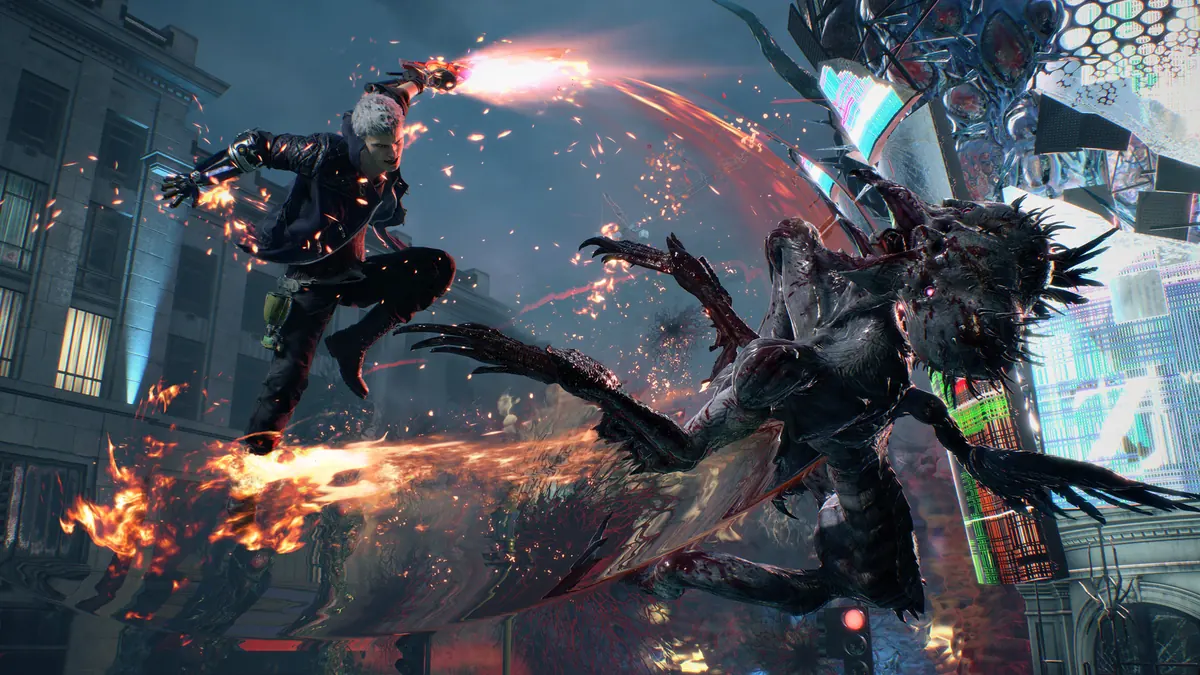
Run a short DMC5 co-op split-screen test
Launch only a short test area. First verify that Nucleus Co-op opens the expected number of windows and that each window reaches the game menu. Then test independent movement and camera input before trying combat. A two-window launch is not enough: the trainer must keep the players separate and the game must remain stable when both instances are active.
If the second window closes, the trainer fails to load, or both players share input, record the exact stage and stop. Do not stack several DLLs, injectors, remappers, or community fixes in one attempt. Return to the clean baseline, compare the current game build with the handler note, and change one variable only.
Treat online play as a separate question. This setup is for local multi-instance testing on one Windows machine; Nucleus Co-op does not create a new online service. If the trainer or game documents a network requirement, follow that project's current notes instead of assuming that two local windows prove online support.
Keep a reproducible DMC5 Nucleus Co-op record
Before changing a working DMC5 setup, record the Nucleus Co-op version, handler source or date, trainer version or file name, game build, executable path, instance count, controller type, window layout, and the exact point where the test succeeded. This small record is more useful than a generic claim that DMC5 co-op works because it preserves the combination you actually tested.
When DMC5, the trainer, the handler, or Nucleus Co-op updates, repeat the same short test and change one variable. If the second window closes, the trainer stops loading, a controller crosses between players, or the save path changes unexpectedly, stop before a longer mission and preserve the error message and backup location.
If no current handler note or trainer source can be verified, do not improvise a download link. Use the official Nucleus release page, the Handler Hub, and the linked project notes to find the current source, or treat the DMC5 workflow as unavailable until a verifiable update exists.
- Nucleus Co-op version and official release URL.
- DMC5 edition, game build, launcher, and executable path.
- Handler source, trainer source, and their version or date.
- Instance count, window layout, and controller assignment.
- Exact failure stage, message, and the file changed after the test.
- Save backup location and clean-exit result.
| Record | Example question |
|---|---|
| Versions | Which Nucleus, handler, trainer, and DMC5 build were tested together? |
| Launch | Did both instances reach the menu before input testing? |
| Input | Which physical device controlled each player or window? |
| Stability | Did a short combat test finish without a crash or cross-input? |
| Saves | Which folder changed after a clean exit, and was the original backed up? |
Practical notes for a stable setup
DMC5 Nucleus Co-op FAQ
Can I play Devil May Cry 5 in local split screen with Nucleus Co-op?
You can test a community workflow when a compatible DMC5 trainer and Nucleus Co-op handler are available, but it is not a native DMC5 split-screen menu and compatibility can change with updates. Verify the current sources and run a short baseline test.
What do I need for a DMC5 Nucleus Co-op setup?
Use a legitimate Windows game installation, a current Nucleus Co-op release, a compatible handler and community trainer, separate input devices, a save backup, and enough hardware headroom for two instances.
Does Nucleus Co-op make DMC5 work online?
No. Nucleus Co-op coordinates local processes and input; it does not create an online service. Keep local multi-instance testing separate from any network or trainer-specific requirement.
Why does one controller control both DMC5 windows?
Check duplicate or virtual devices, window focus, the controller API, remapping tools, and the handler's input-isolation notes. Return to the simplest two-device baseline before changing resolution or save files.
Will a DMC5 update break the split-screen setup?
It can. A game patch may change the executable or memory behavior that the trainer and handler expect. Record the working build and re-check the trainer and handler notes after an update.
Where should I download the DMC5 trainer?
Use the trainer project's current source and notes, not a copied file from an unverified mirror. This guide links the community reference for context but does not claim that the trainer is official Capcom software or provide a permanent direct file URL.
Need a clean Nucleus Co-op baseline?
Start with the official release, install, handler, controller, and troubleshooting guides, then return to this DMC5-specific test plan when the general setup is stable.
Open the handler guide