Can Terraria run split screen on PC?
A single Windows PC can host Terraria local multiplayer through multiple instances only when a compatible community handler and game setup are available. Terraria supplies host and join behavior; Nucleus Co-op coordinates supported instances and input devices. It does not add multiplayer rules to a game by itself.
Treat support as conditional. Search the official Nucleus Handler Hub for a current Terraria entry and match its edition, build, player count, launch order, and dependencies to your copy. An old screenshot or search result is not proof of present compatibility.
If the handler is missing or its instructions are unclear, stop before downloading scripts or changing files. Use separate computers or wait for a verifiable setup. This guide shows how to evaluate a supported path without promising that every Terraria release works.
Check the handler before changing Terraria
Open the official Nucleus Co-op Handler Hub, search for Terraria, and read the handler page rather than relying on a game-list title. Match the edition, build, player count, launch order, and launcher requirements to your installation. The hub's game support documentation explains why each handler has its own conditions.
Record the handler author, version or update marker, and limitations before installing it. Scripts can change independently from the game and app, so another supported game or an old Terraria screenshot proves nothing. If the listing is missing or points to an unexplained executable or file host, do not improvise.
Prepare the game, Windows, and player inputs
Start Terraria normally outside Nucleus Co-op, reach the title screen, load the intended edition, then save and close a test world. Fix any normal-launch problem before adding a second process.
Plan one supported input path per player. Separate controllers are a clear starting point when the handler supports them; do not assume one keyboard independently controls two instances. Check the handler notes and Windows device list before launch.
Back up the world and characters you care about, then use a disposable test world. Save locations and cloud behavior vary, so consult the official Terraria multiplayer reference and your platform's file guidance instead of guessing a path. Keep the original save untouched until a test session reopens correctly.
| Check | What to confirm before continuing |
|---|---|
| Game baseline | The installed Terraria edition opens normally and can load a test world. |
| Handler source | The handler comes from the official hub or another source the project explicitly documents. |
| Player count | The handler's notes support the number of instances you intend to test. |
| Input devices | Windows and the handler can distinguish the controller or supported device for each player. |
| Save recovery | You know how to restore a copy of the selected test world and characters. |
Set up Terraria split screen on one PC
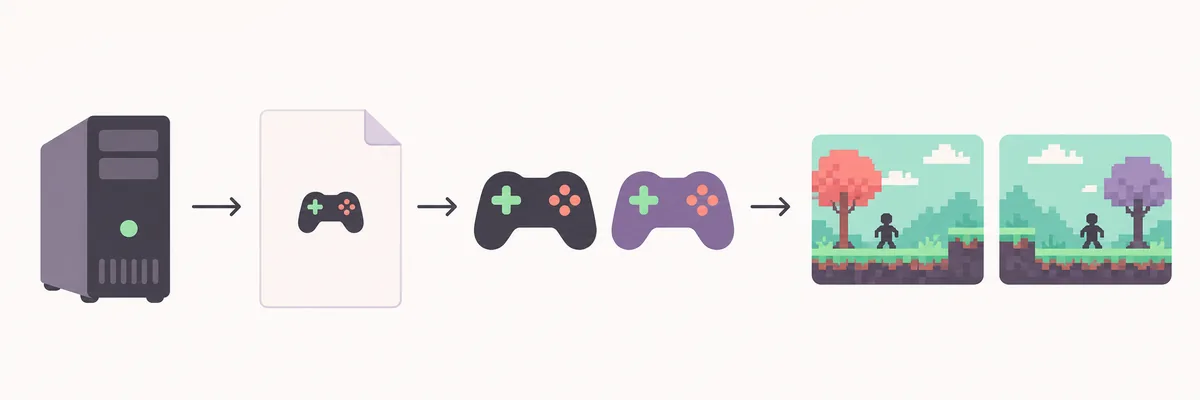
Follow the handler's current instructions for installation and launch. This controlled test sequence is a guide; buttons, player limits, and launch order vary by handler.
Install the documented handler
Use the official hub entry and read its requirements. Let Nucleus Co-op detect the normal Terraria installation; do not replace game files or run an undocumented script.
Assign each player's input
Connect only the devices needed for the test. Assign each supported controller to its intended instance and check that no device is mapped to both players.
Launch the supported instances
Start two only if the handler supports two players. Wait until both windows load before changing layout. If one fails, record the game and handler builds instead of repeatedly relaunching.
Connect inside Terraria
Use desktop Host & Play when the handler allows it. Join from the second instance with the in-game method documented for your build. Do not guess an address or assume a lobby appears automatically.
Run a short save test
Move each character independently, confirm both are in the intended world, save, and exit in the documented order. Reopen the test before risking a valuable save.
Host and join inside Terraria
Hosting and joining are Terraria game features, not Nucleus Co-op launcher features. Desktop Terraria documents Host & Play and Join via IP, but options and network details vary by edition and build. Follow the menus in your copy and the handler notes for the second instance.
Open one host world, then join from the other instance using the game's documented method. If it is not visible, confirm the world is open, both instances use a compatible edition, and launch order is correct. Do not change firewall or network settings until the handler requires it.
Verify three outcomes separately: both windows respond, each player controls the intended character, and both characters enter the same world. If launch and input work but joining fails, troubleshoot the game connection stage.
Separate the controls and arrange the windows
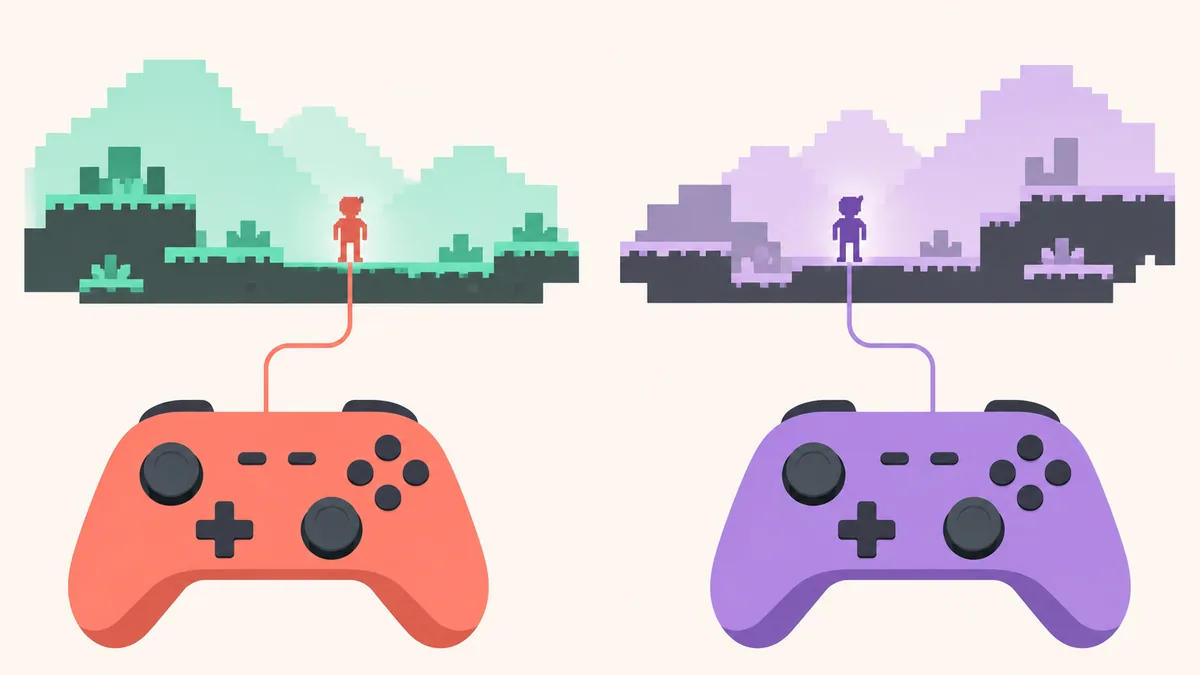
Test input before arranging windows. Focus one instance and press a low-risk movement control: only its character should react. Repeat in the other window. If both react, correct device assignment; a new layout will not fix shared input.
Remappers, virtual devices, and Steam Input can make one controller appear more than once. Keep the first test simple and add only layers required by the handler. Keyboard and mouse need a distinct supported path per instance. After controls pass, use the recommended layout and resize only while both windows remain stable.
Troubleshoot the stage that actually failed
Record the app, game, and handler versions, input devices, failure stage, and exact message. Change one variable per attempt. The general Nucleus Co-op troubleshooting guide can help separate path, permission, input, display, and network symptoms, but Terraria-specific handler instructions take priority.
| Symptom | First checks |
|---|---|
| Nucleus Co-op cannot find Terraria | Launch the game normally, confirm its install location, and follow the handler's detection instructions. |
| Only one instance opens | Check the supported player count, exact game build, required launcher state, and handler launch order. |
| Both players control one character | Review the device map, disconnect extra virtual devices, and retest one physical controller at a time. |
| The second player cannot join | Confirm the host world is active, both instances use a compatible edition, and the handler's join method is followed. |
| A world or character looks missing | Stop writing to the affected save, close cleanly if possible, and restore the backup before trying another configuration. |
| The game freezes or closes | Return to a normal single-instance launch, capture the error and versions, then check the handler's known issues before changing files. |
Protect Terraria worlds and characters
Use a disposable world and character first. Close both instances in the documented order, reopen the test, and make a fresh backup before changing handlers or instance settings. Do not assume the instances share saves safely or create separate copies automatically; cloud and local settings affect what appears after restart.
Keep a known-good copy outside folders the handler may change. If a world disappears or rolls back, stop and restore the backup before another test. For support, note whether the save was local or cloud-synced, which instance hosted it, and what happened after closing.
Practical notes for a stable setup
Terraria split screen PC FAQ
Does Terraria have native split screen on PC?
Desktop Terraria has host and join options, not a built-in split-screen display. One-PC multi-instance play depends on a compatible handler and game connection path.
Is a Terraria Nucleus Co-op handler currently supported?
Check the official Handler Hub for a current entry and match its edition, build, player count, and requirements. This guide does not guarantee support for every release.
How do I connect two Terraria instances?
Use Terraria's desktop multiplayer menu. Host with Host & Play when the handler allows it, then follow the joining method documented for your build.
Can both players use one keyboard?
Only if the handler supports a separate input path for both instances. Confirm this in its notes and test each player before playing.
Why does one controller move both characters?
Stop and inspect device assignment. Disconnect unnecessary virtual devices or remappers, map one controller, and confirm only its intended character responds.
Should I use my main world for the first test?
No. Use a disposable world, back up important characters, then test a short join, save, clean exit, and reopen cycle.
Verify the rest of your Nucleus Co-op setup
Once a current Terraria handler is confirmed, use the general installation and controller guides to check the shared setup details before a longer session.
Browse game-specific guides