
Confirm the exact Black Ops 3 PC edition first
Black Ops III search results can mix the base PC game, the Zombies Chronicles Edition, older community instructions, and console-only split-screen advice. Start with the legitimate PC installation that you actually own and record the store page, executable path, edition name, game build, and launcher behavior. Steam identifies Call of Duty: Black Ops III as a Windows PC title, but that does not by itself prove that every handler revision or every multiplayer mode is compatible.
Launch the game normally before opening Nucleus Co-op. Confirm that the main menu, a short solo load, and your existing profile work without the splitter. If the ordinary game cannot start, repair that problem first. Nucleus Co-op can coordinate instances and input routing; it cannot replace missing files, repair a broken install, or make an unsupported client behave like the Steam release.
Keep the edition boundary visible in your notes. A Zombies-specific setup, a campaign test, and a network session can have different dependencies. Do not copy a Black Ops II or console tutorial just because the names look similar. The useful starting point is a precise edition and build, followed by the current handler source and any documented player limit or required launch order.
- Confirm the exact PC edition and executable before selecting a handler.
- Record the launcher, game build, language, and whether the normal game reaches its menu.
- Use legitimate game files and keep the handler, mod, and game directories distinct.
- Read the handler's player-count, mode, and dependency notes before adding a fourth input.
- Back up valuable profiles or saves before a multi-instance experiment.
Match the Black Ops III handler and startup requirements
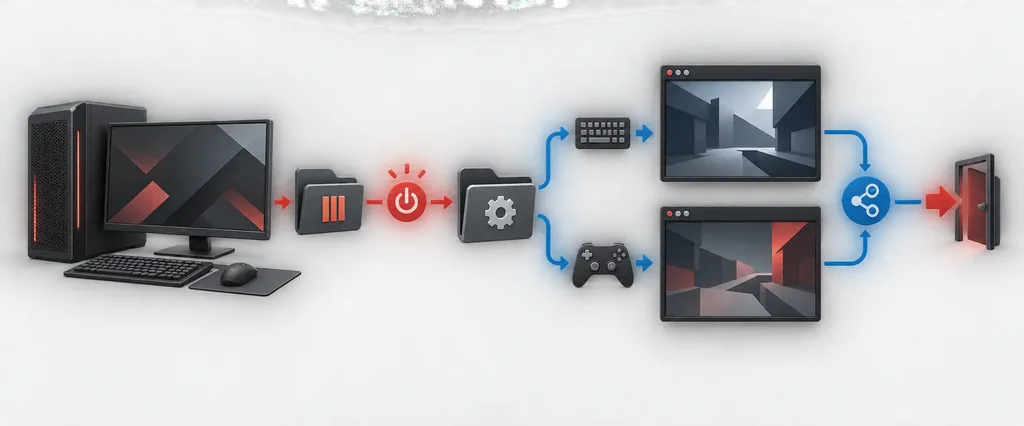
A Black Ops III handler is a community compatibility layer, so its behavior can change when the game, launcher, input method, or helper process changes. Before clicking launch, compare the handler's source, revision date, expected executable, supported player count, and required files with your own installation. Treat an old video or forum post as a lead rather than proof that today's build is supported.
For the first run, use a writable Nucleus Co-op folder and close unrelated overlays, controller remappers, and debuggers. Start with the default window arrangement and the smallest player count that can prove the path. If the handler opens one window, cannot find the executable, or exits during injection, capture the exact stage instead of changing several dependencies at once.
A good report separates the handler from the game. Test Black Ops III outside Nucleus Co-op, then repeat the same launch with the handler. Note the game build, handler version, window count, whether ProtoInput started, and the complete error text. That record is more useful than saying only that Black Ops 3 is not working.
| Symptom | First check |
|---|---|
| The executable is not found | Edition, launcher path, executable name, and read/write access. |
| Only one window opens | Handler player count, launch order, and instance requirements. |
| The second window closes | Game build, per-instance files, memory use, and helper dependencies. |
| Crash during injection | Handler revision, ProtoInput stage, overlays, and a clean baseline launch. |
Separate Black Ops III controllers before adding complexity
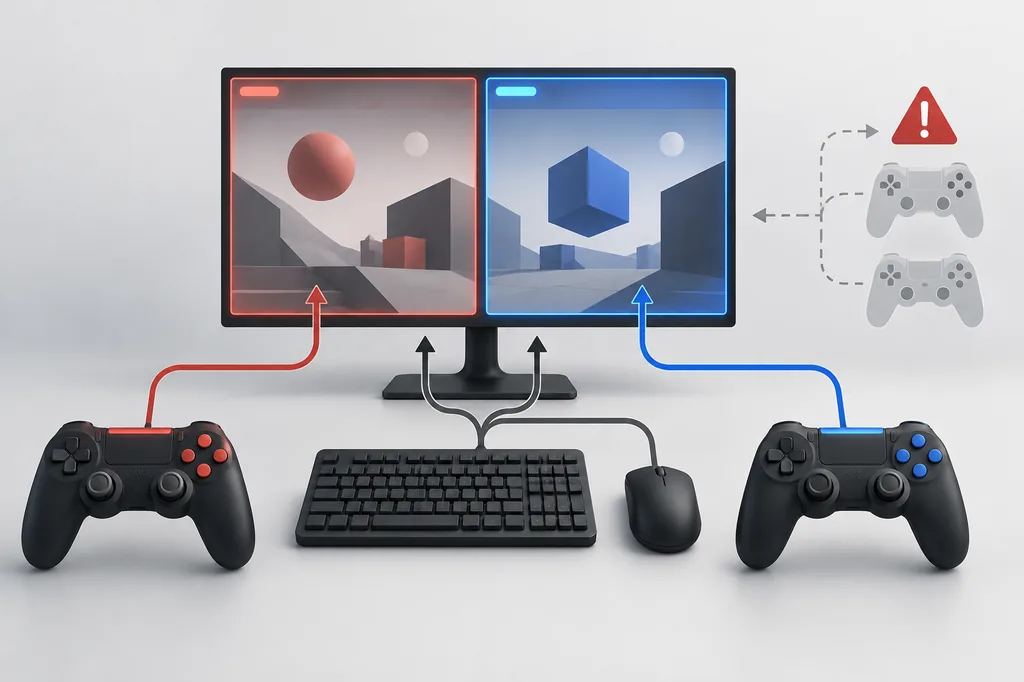
Input separation is easier to diagnose when every physical device appears once in Windows. Connect two known controllers, launch the smallest test, and verify movement in one window at a time. If one pad controls both instances, close virtual-device tools and check whether the handler expects XInput, DirectInput, or another translation path. Do not assume a PS4, PS5, or Joy-Con mapping behaves like an Xbox pad.
Four-player Zombies or multiplayer layouts put more pressure on window focus, input assignment, and display space. Prove two independent devices first, then add the next pair only after the first two remain stable. Keyboard and mouse are often focus-sensitive, so keep the default window mode and click each instance deliberately while you verify which player receives input.
Keep input testing separate from graphics tuning. Ultrawide sizing, borderless tweaks, overlays, and remappers can hide the real failure stage. Change one variable, record the result, and return to the last working layout when a new device makes both windows respond to the same input.
Connect two known devices
Plug in or pair the first two controllers before the handler starts the game instances.
Verify player one
Move and navigate only the first Black Ops III window, then pause and observe the second window.
Verify player two
Repeat the test and confirm that player one remains independent before adding another pad.
Expand carefully
Test four-player input, keyboard focus, or a translation layer only after the two-device baseline is repeatable.
Test the game's own Zombies, campaign, or multiplayer connection
Once the windows and devices are independent, follow the connection flow that the current game and handler notes describe. Nucleus Co-op does not create a new matchmaking service, and a local multi-instance test is not the same as joining another computer. Choose one mode for the first run: a short Zombies load, a campaign checkpoint, or the documented local or online session path.
Keep the first session short. Confirm that both players can load, move, pause, and exit without the wrong window receiving input. Then check whether the game writes separate instance data, shares a profile, or uses a mode-specific save boundary. Back up important saves before copying files or importing a profile between instances.
If a session fails after the menu, record whether the failure happened during map load, player join, connection handshake, input assignment, save, or exit. A network symptom can be mistaken for a handler crash when the windows and controls were already working. Re-run the shortest successful stage before attempting a longer four-player session.
Keep a reproducible Black Ops III Nucleus Co-op test record
A useful Black Ops III Nucleus Co-op record names the exact edition, executable, launcher, game build, handler revision, player count, input API, and connection mode. Use the same short checklist for a working run and a failed run. This matters because community support can change after a game update, and a vague note such as “Black Ops 3 works” does not tell another player which release or mode was tested.
Write down the first stage where the result changes: handler download, game-path detection, first window, second window, controller assignment, map load, player join, save, or clean exit. Include the full error text, not just a screenshot title. If the error appears only with four players, compare it with a two-player baseline so the report shows which variable changed.
After a handler, launcher, or game update, repeat the same short test before installing another remapper or changing display settings. Compare one variable at a time and keep official game files separate from handler files. A precise record makes it easier to decide whether to continue, wait for a handler update, or stop before a valuable profile is changed.
Use the record as a stop rule when the release or handler source is uncertain. If the executable cannot be found, the second window closes, or input starts before the game is ready, pause and capture the stage. Controlled testing is safer than stacking fixes that belong to different game releases.
- Black Ops III edition, launcher, executable, and game build.
- Handler source, revision, required files, and player-count notes.
- Window count before input and connection.
- Controller API, keyboard focus, remappers, and display mode.
- Connection mode, save or profile folder, and clean-exit result.
- Full error text, first failing stage, and the last known working change.
| Record | Example question |
|---|---|
| Edition | Which Black Ops III PC edition, launcher, and executable were used? |
| Handler | Which handler revision, dependency, mode, and player count applied? |
| Failure stage | Did the problem happen before the second window, during map load, or after join? |
| Input and save | Were devices independent, and which files changed after the test? |
Practical notes for a stable setup
Black Ops III Nucleus Co-op FAQ
How do I set up Black Ops III with Nucleus Co-op?
Confirm the legitimate PC edition and build, match the current handler notes, launch the game normally, then verify two windows and independent controllers before testing Zombies or another connection mode.
Does this guide guarantee that every Black Ops III version works?
No. Handler support depends on the exact edition, game build, input path, player count, and connection mode. Treat the page as a controlled checklist and re-check the current handler source after updates.
Why does Black Ops III open only one window?
Check the handler player-count note, executable path, launch order, instance requirements, and the exact game build. Capture the first stage where the second instance is missing.
Why do both Black Ops III windows respond to one controller?
Start with two known devices, close virtual input tools, and confirm the handler's expected input API. Test one window at a time before adding remappers or a four-player layout.
Can I test four-player Zombies with this setup?
Only when the current handler notes document that player count and mode. Prove a two-player baseline first, then add devices while recording input, window, map-load, and save behavior.
Where should I report a Black Ops III handler failure?
Record the edition, build, handler revision, error stage, window count, input setup, and full error text, then use the official project or handler support channel instead of copying an unrelated fix.
Need a clean controller baseline?
Use the controller and troubleshooting guides to verify input and startup behavior before you return to the game-specific checklist.
Open controller fixes