Before you install a Palworld handler
Start with a Palworld installation that launches normally outside Nucleus Co-op. Record the game build, launcher, installed mods, and whether you are using a local or online session. A handler is a game-specific instruction layer, not a replacement for the game or a guarantee that every current patch supports the same workflow.
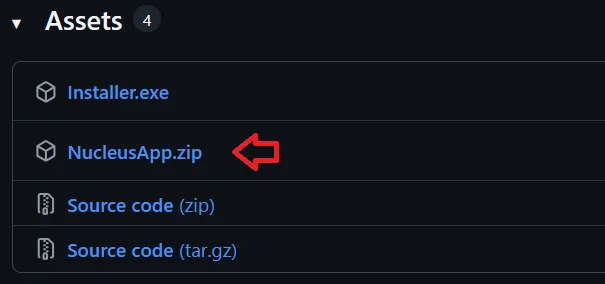
Use a simple local Nucleus Co-op path and keep the application, handler, mod, and game files identifiable. If a download source does not explain its version or origin, do not replace the main application with it just because a handler search result says it is required.
- Normal Palworld launch outside Nucleus Co-op.
- Exact game build, launcher, and mod information.
- Current handler notes and documented player limits.
- A backed-up test world or profile.
- A simple controller arrangement for the first session.
Match Palworld's game build and launch path
When Palworld updates, a handler can need changes to the executable path, launch arguments, instance files, save behavior, or connection step. Read the current notes and compare the handler assumptions with your installation. If the game launcher or mod loader is different, record that difference before you copy a community fix.
If the handler starts one window and then closes another, capture the exact stage and error. Check permissions, file paths, game version, handler version, and per-instance storage before you change graphics settings.
| Check | What to compare |
|---|---|
| Game build | The current version against the handler's supported notes. |
| Executable and launcher | The path and launch method the handler expects. |
| Mods | Loader and mod versions, if the handler requires them. |
| Instance files | Whether each window gets the expected files and save path. |
Test Palworld controllers and split windows
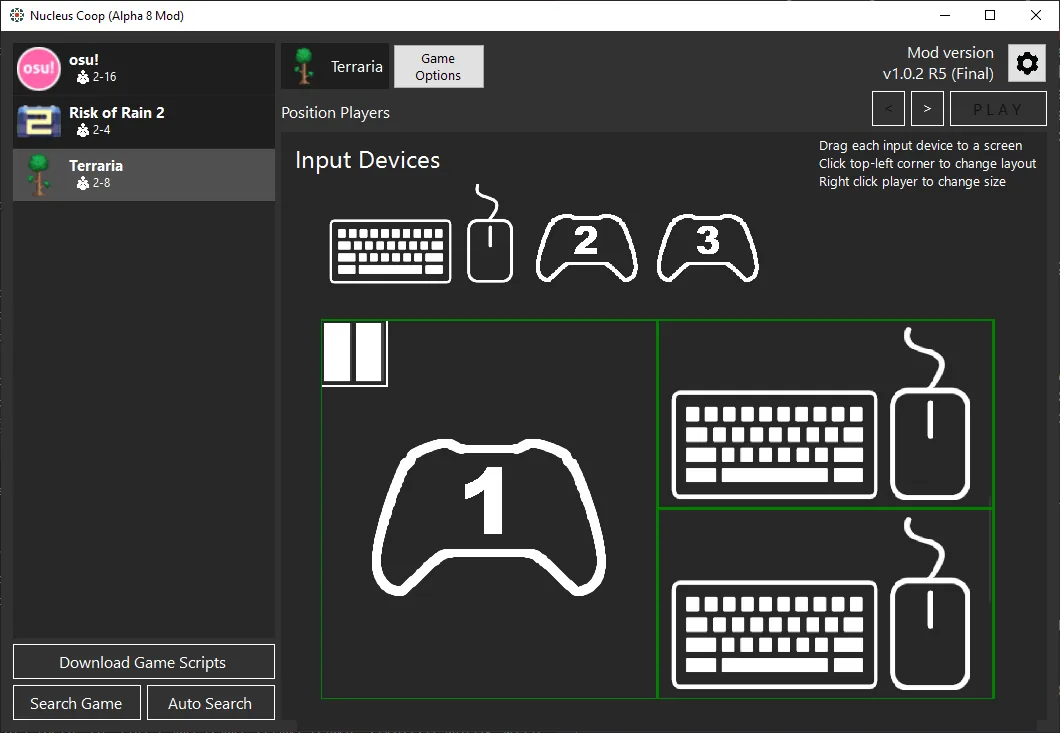
Connect the controllers before launching the handler and start with the simplest arrangement you can reproduce. Test one player's movement, menu navigation, and camera input, then repeat for the second instance. If a controller controls both windows, investigate device duplication, input API, focus, and virtual-device tools before changing the game resolution.
A multi-monitor or ultrawide layout can make a working input path look broken if the mouse coordinates or focus state are wrong. Establish the default handler layout first, then adjust display settings one variable at a time.
Connect inputs
Pair or plug in the devices and confirm Windows exposes the expected count.
Launch one test
Use the current handler and default window arrangement.
Verify player one
Move only the first instance and test menu focus.
Verify player two
Repeat the same checks for the second instance.
Change display later
Test ultrawide, borderless, or monitor changes only after input works.
Check Palworld worlds, saves, and connection behavior
Run a short test with a disposable or backed-up world. Confirm which instance folder changes, how the world is saved, and whether the session uses a local, LAN, online, or handler-specific connection path. Do not import or overwrite a valuable world until you understand the handler's file behavior.
If the instances launch but cannot join, check the game's own session rules, firewall, launcher account, mod version, and handler notes. Nucleus Co-op can coordinate supported processes and windows, but it does not create a universal Palworld online service or change the game's save rules.
Record a working Palworld Nucleus Co-op setup
For a Palworld Nucleus Co-op test, record the PC game build, launcher, handler version or date, executable path, installed mods, world type, connection method, and controller arrangement. Palworld updates can change launch behavior, save paths, or connection expectations, so the game name alone is not enough to identify a working setup.
Write down the order of events: normal launch outside Nucleus Co-op, handler selection, instance creation, player input, world loading, connection, save, and clean exit. If one instance closes, note whether it happened before the world loaded or after a connection attempt. This distinction helps separate a build mismatch from a save, firewall, input, or session problem.
After a Palworld patch or handler update, repeat the same short test with a backed-up or disposable world. Change one variable at a time and keep the original application, handler, mod, and game sources separate. A precise version record makes Palworld Nucleus Co-op troubleshooting more useful and reduces the risk of testing an important world with an unverified combination.
Use the record as a stop rule when the world or connection behavior is unclear. If the second instance closes, the world path changes unexpectedly, or the session cannot join, pause before updating more files. A small Palworld Nucleus Co-op test protects the original save and shows which layer needs a documented change. Keep the backup outside the working folder so a handler cleanup cannot remove the only copy. Test with a disposable world first and label the backup clearly.
- Palworld build, launcher, and handler version.
- Executable path and installed mod details.
- Window count before the world loads.
- Controller assignment for both instances.
- Local, LAN, online, or handler-specific connection.
- Backup location and exact error stage.
| Record | Example question |
|---|---|
| Build and handler | Which Palworld build and handler notes were tested together? |
| Launch stage | Did both windows reach the world before a failure? |
| Connection | Was the session local, LAN, online, or handler-specific? |
| World safety | Was the original save backed up before the test? |
Practical notes for a stable setup
Palworld Nucleus Co-op FAQ
How do I set up Palworld with Nucleus Co-op?
Launch Palworld normally, match the handler to the exact build, use a simple controller setup, test two windows, and follow the game's connection and save notes.
Why does Palworld crash in Nucleus Co-op?
Compare the game build, handler, launcher, mods, permissions, instance files, and input tools. Capture the exact launch stage and error.
Does Palworld Nucleus Co-op support online play?
Only when the current game and handler provide a supported connection method. Check the title-specific notes rather than assuming the app adds online support.
Can I use multiple controllers in Palworld?
The result depends on the game, handler, and input API. Start with known devices, verify each window, and troubleshoot shared input before adding remappers.
How should I protect Palworld saves?
Back up the original world or profile before testing instance paths, importing saves, changing versions, or updating a handler.
Keep the first Palworld test small
Read the controller and troubleshooting guides, then return to the game notes when you know the exact handler and game build.
Open troubleshooting