Minecraft Java is not Minecraft Bedrock
Start by confirming that you are setting up Minecraft Java Edition. Java and Bedrock use different launchers, file structures, mod ecosystems, and input behavior, so a guide or handler for one edition should not be copied to the other. Record the exact edition, version, launcher profile, and any mod loader before you select the handler.
The game should launch normally outside Nucleus Co-op first. If a modded profile or launcher path is required, follow the handler notes exactly and keep a clean profile available for comparison.
| Check | Why it matters |
|---|---|
| Edition | Java and Bedrock are separate setup targets. |
| Game version | World, mod, loader, and launcher behavior can change between versions. |
| Profile | A modded profile may not use the same executable or folder as a clean profile. |
| Account | Multiple instances can have account and authentication rules that are not controlled by Nucleus Co-op. |
Check the launcher and instance paths
Minecraft Java instance behavior depends on where the launcher stores game files, profiles, logs, and worlds. A handler may isolate or redirect files so that two instances do not overwrite each other, but the exact path is setup-dependent. Do not copy a world folder or profile into an unknown directory until you have backed up the original.
If the handler cannot find Minecraft Java, check the launcher profile, executable path, Java runtime, permissions, and the exact instance folder. A cloud-synchronized or protected path can add file-locking and access problems, so use a local folder while diagnosing.
Record the profile
Write down the Java version, game version, launcher profile, and mod loader if present.
Back up worlds
Copy important worlds and settings before testing multi-instance file behavior.
Match the handler
Use the exact Java edition and handler notes, not a Bedrock or similarly named entry.
Test one world
Launch a short session before importing more saves or mods.
Separate Minecraft Java controllers and keyboard input
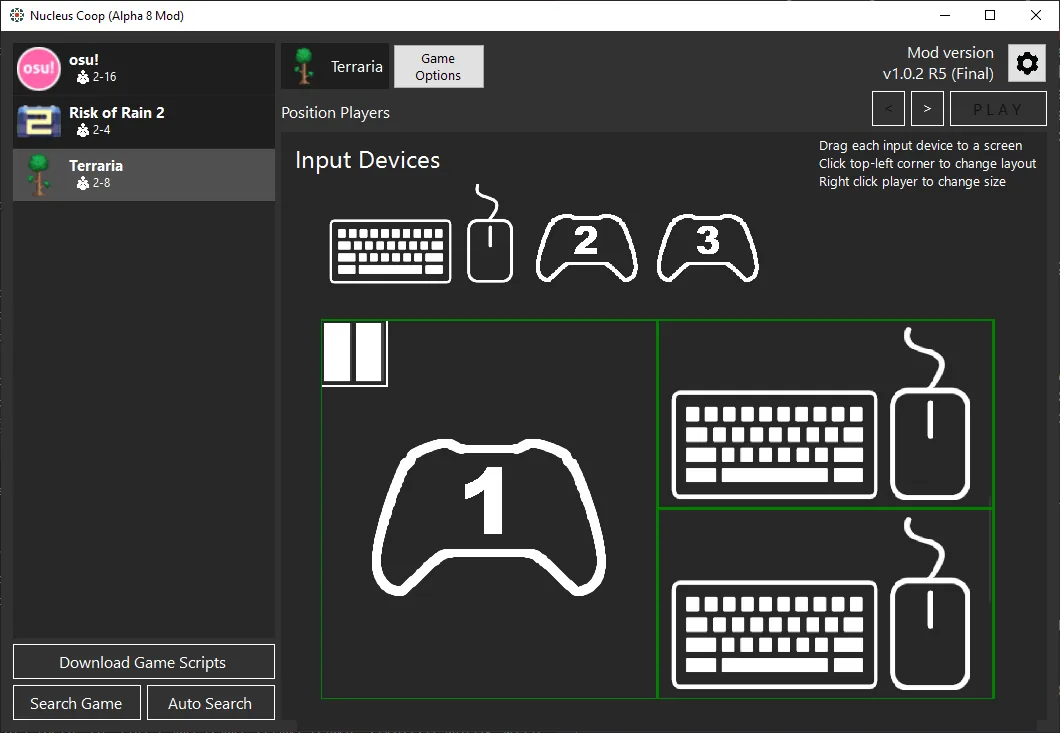
Minecraft Java controller support and keyboard focus can vary by version, mod, launcher, and handler. Start with the simplest input path the handler documents. If one keyboard controls both instances, test focus and window mode; if one controller controls both, check device exposure and any translation or virtual input tool.
Mixing keyboard, mouse, Xbox controllers, PS4, PS5, or Joy-Con devices can change the device order. Establish two known-good devices first, then add the mixed setup and record the change.
- Test the keyboard and mouse focus of each window.
- Confirm Windows sees each physical controller once.
- Avoid adding several virtual-device tools during the baseline test.
- Use the handler's input notes for controller translation or player assignment.
- Check resolution and mouse coordinates only after input routing works.
Worlds, saves, mods, and version boundaries
A successful multi-instance launch does not prove that world saves and mod files are isolated correctly. Use a test world, save, exit cleanly, and verify which folder changed. Keep a backup before you import a world into an instance path or update the game and mod loader.
If two instances share a folder unexpectedly, stop the session and read the handler notes before continuing. A world or profile written by a different game version may not load cleanly, and a mod mismatch can look like a Nucleus Co-op crash.
Record a working Minecraft Java Nucleus Co-op setup
A Minecraft Java Nucleus Co-op record should be more specific than the game name. Note Java or Bedrock, the game version, launcher profile, Java runtime, mod loader, installed mods, handler version, instance folder, and input method. These details determine whether two instances are using the same files and whether a world can be opened safely.
For the first test, record the clean launch result, the number of windows, the keyboard or controller assignment, the world used, and the folder that changed after saving. If the handler isolates instances, write down the created paths. If the instances share a profile or world unexpectedly, stop before importing more files and back up the original data.
When Minecraft Java or a mod loader updates, repeat the same small test with a disposable world. Do not solve a version mismatch by copying a Bedrock guide, mixing Java profiles, or adding several mods at once. A clear record makes the Minecraft Java Nucleus Co-op workflow reversible and shows whether a failure belongs to the launcher, handler, input, world, or game version.
Use the record as a stop rule before importing a valuable world. If the launcher profile is unclear, the handler points to an unexpected directory, or both windows can write to the same save, stop and back up the original files. A small Minecraft Java Nucleus Co-op test is easier to repair than a mixed profile with an unknown version boundary. Keep the clean profile available for comparison and label every backup with its game version.
- Java or Bedrock edition and game version.
- Launcher profile, Java runtime, and mod loader.
- Handler and instance folder behavior.
- Keyboard focus or controller assignment.
- Disposable world used for the first save.
- Exact error and the file path involved.
| Record | Example question |
|---|---|
| Edition and version | Is this Java, which game version, and which launcher profile? |
| Files | Which instance and world folders did the handler use? |
| Input | Did keyboard focus or each controller stay with one window? |
| Mods and saves | Was the test world backed up before the profile changed? |
Practical notes for a stable setup
Minecraft Java Nucleus Co-op FAQ
Does Nucleus Co-op support Minecraft Java?
Use the exact Java handler and current notes for your launcher, game version, profile, and mods. Do not infer Java support from a Bedrock guide.
Can I use Minecraft Bedrock with the Java handler?
No. Java and Bedrock are separate editions with different launchers and file behavior; use a matching setup guide.
Why do both Minecraft Java instances share controls?
Check keyboard focus, controller API, duplicate virtual devices, window mode, and the handler's input assignment instructions.
How do I import a Minecraft Java world?
Back up the original world, identify the handler's instance save path, and copy only after confirming the game and profile versions match.
Can I use mods with Minecraft Java Nucleus Co-op?
Only when the exact handler and game profile document the mod or loader path. A mod mismatch can cause startup or connection errors.
Keep Java setup reversible
Read the general installation guide, use a clean local path, and back up worlds before testing instance-specific files.
Read the install guide